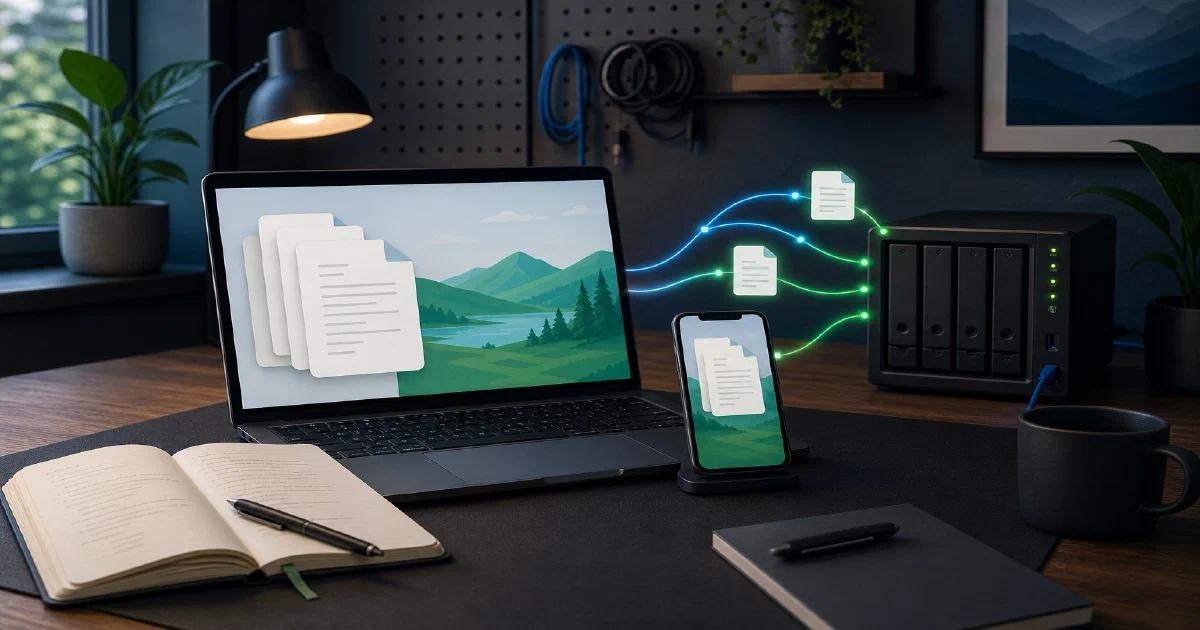

Your notes are not just another dataset.
They are the scratchpad for decisions, projects, reading, debugging sessions, weird ideas, and half-finished plans. That is why I keep coming back to note-taking tools that preserve the simplest possible artifact: a folder of Markdown files.
Files.md follows that direction very directly. It is a local-first notes app for .md files, with a browser/PWA interface, a chat-like capture flow, optional Telegram input, and a small Go server when you want self-hosted sync.
Files.md is a private, quiet space for thinking. Simple app for
.mdfiles.
What is Files.md?
Files.md is an open-source Markdown note-taking app by Artem Zakirullin.
The main idea is simple: keep your knowledge as ordinary Markdown files, then make the app around those files as small and understandable as possible.
That gives Files.md a different feel from heavier PKM systems. It is not trying to become a full project management suite, a database-backed wiki, or an everything-dashboard. It is closer to the “open a folder and think” model, with a few practical workflows layered on top.
Why Files.md is interesting
- Plain Markdown files: Notes remain readable with any editor.
- Local-first workflow: The browser app can work with a local folder.
- No Electron requirement: The core app is static HTML, CSS, and JavaScript.
- Optional sync: Use a cloud folder, the self-hosted Go server, or the hosted sync option.
- Chat-style capture: Drop thoughts quickly, then organize them later.
- Telegram bot option: Capture notes from Telegram when that fits your workflow.
That last part is the useful twist. A lot of note apps make you decide where a note belongs before you write it. Files.md leans into quick capture first, structure later.
Files.md vs Logseq, SilverBullet, and Memos
I have covered a few note-taking tools here already, including Logseq , SilverBullet , Memos , and self-hostable note-taking tools .
Files.md belongs in that same conversation, but it is not a drop-in clone of any one of them.
Logseq is strong if you like outlines, blocks, journaling, and graph-based knowledge work. Files.md is simpler and more file-centric. It does not push you into an outliner model.
SilverBullet is great when you want a programmable, local-first Markdown knowledge base with queries and a web interface. Files.md is less about query power and more about quick capture, files, sync, and keeping the app small.
Memos is excellent for short timeline-style notes, but it is database-centric. Files.md keeps the actual knowledge base as .md files.
Obsidian remains the obvious comparison because both tools care about local Markdown files. The difference is that Files.md is open source and browser-first, while Obsidian is a polished proprietary desktop/mobile product with a much larger plugin ecosystem.
Tech Overview of Files.md
The repository is split into three main areas:
web/contains the browser app.server/contains the Go server, sync logic, bot logic, journal helpers, habits, and filesystem code.cmd/contains the server entrypoint plus utility scripts for working with Markdown files.
The frontend is intentionally old-school in a good way. There is no large frontend build pipeline. The app starts from web/index.html, uses vanilla JavaScript, and vendors browser libraries under web/lib/.
The editor stack uses CodeMirror and HyperMD, plus local helpers for Markdown links, images, folding, LaTeX, Mermaid, emoji, and sidebar behavior.
The backend is a Go service. It can serve the PWA, handle sync endpoints, process Telegram bot updates, move due tasks, update habits, and store user files under a filesystem directory.
Storage model
The important part is the storage model.
Your notes are plain files:
Chat.md
brain/Note.md
journal/2024.08 August.md
Later.md
Read.md
Watch.md
Shop.md
habits/*.md
media/*
config.json
That makes backups and migrations easier to reason about. You can copy the folder, use Git, sync with another tool, or inspect everything from a terminal.
Sync model
Files.md supports several sync modes:
| Setup | Where files live | Server needed |
|---|---|---|
| Local-first browser app | Folder on your device | No |
| Cloud-folder sync | iCloud, Dropbox, Google Drive, etc. | No self-hosted server |
| Self-hosted sync server | Your server | Yes |
| Hosted sync | Files.md managed server | No local server |
The self-hosted server exposes endpoints such as /syncFilenames, /syncFile, /syncMediaFilenames, /syncMediaFile, and /issuePermanentToken.
One useful implementation detail: deletes are tracked through an append-only deletion log. Without that, another client could accidentally resurrect a file that was deleted elsewhere.
Self-Hosting Files.md with Docker
Files.md can be used without self-hosting anything: open the hosted PWA, open a local folder, and keep your data on the device.
But if you want a server for sync, the repository ships a Dockerfile and a compose.yaml.
Pre-Requisites - Docker
Install Docker on your system before proceeding:
- Linux: Official Docker Engine install guide
- Windows / Mac: Docker Desktop
Verify installation: docker --version && docker compose version
Docker Compose Configuration
I added a reusable Home-Lab compose file here:
Files.md Docker Compose in Home-Labservices:
files-md:
container_name: files-md
build:
context: https://github.com/zakirullin/files.md.git#dcda6fcfc1759868922785e7c5b2381ba85acfc0
dockerfile: Dockerfile
restart: unless-stopped
ports:
- "${FILES_MD_BIND:-127.0.0.1}:${FILES_MD_PORT:-8088}:8080"
environment:
APP_URL: "${FILES_MD_PUBLIC_URL:-http://localhost:8088}"
API_URL: "${FILES_MD_PUBLIC_URL:-http://localhost:8088}"
STORAGE_DIR: "/app/storage"
TOKENS_DIR: "/app/tokens"
CERT_DIR: ""
STORAGE_QUOTA_KB: "${FILES_MD_STORAGE_QUOTA_KB:-102400}"
volumes:
- ./storage:/app/storage
- ./tokens:/app/tokens
This compose file builds the image from the upstream GitHub repository because Files.md ships a Dockerfile, but the repository does not currently document a stable public container image to pull. The Home-Lab example pins the build context to the commit I tested, so a future change on main does not silently change the deployment.
Deployment Steps
- Clone or copy the compose folder.
- Copy
.env.sampleto.envand adjust the public URL if you are using a reverse proxy. - Start the service:
docker compose up -d --build
- Open the app:
http://localhost:8088
- For a real server, put it behind your reverse proxy and change
FILES_MD_PUBLIC_URLto your public URL.
Configuration Notes
The upstream compose file maps host port 80 to container port 8080. That is clean on a fresh VPS, but on a homelab server you may already have Traefik, Nginx Proxy Manager, Caddy, Pangolin, or another reverse proxy on port 80.
That is why the Home-Lab example maps 127.0.0.1:8088:8080 by default. It is reachable locally and easier to put behind a reverse proxy without exposing a new LAN-wide port by accident.
Also note the quota setting. The Go config default for STORAGE_QUOTA_KB is small, so the example raises it to 102400 for a more practical local test.
Field Note: Local Docker Trial
I tested the repository locally on Linux with Go 1.26.3, Node 22.22.0, npm 10.9.4, and Docker 29.5.3.
The tested commit was dcda6fcfc1759868922785e7c5b2381ba85acfc0. During this review pass, the machine had about 15G free disk, 5.5Gi available RAM, and no swap configured.
These checks passed:
go test ./...
docker compose config
docker build -t files-md-test --build-arg VERSION=local-test .
I also ran a disposable container on port 18080 with bind-mounted storage and tokens folders. The app returned HTTP 200 and served web/index.html when the request host matched APP_URL.
One practical gotcha: the server routes the static app by host. In my trial, a request to 127.0.0.1:18080 returned 404 while the same container responded correctly when the Host header matched localhost:18080.
Useful Files.md Workflows
Files.md is most interesting when you use it as a low-friction capture system.
Quick Capture
Open the chat, dump the thought, and decide later whether it belongs in a project note, journal entry, checklist, reading list, or task file.
This is a sane default. Many people lose the thought while deciding the perfect taxonomy.
Journal and Tasks
Files.md includes conventions for journal files and lightweight task capture. Journal entries are saved into month-based Markdown files, and tasks can live in plain checklist-style files.
This is less rigid than a full GTD app, but that is part of the appeal.
Markdown Maintenance Scripts
The repo includes small Go utilities for your files:
go run /abs/path/to/files.md/cmd/tomdlinks/tomdlinks.go .
go run /abs/path/to/files.md/cmd/backlink/backlink.go
go run /abs/path/to/files.md/cmd/shifttime/shifttime.go
Those are useful if you want to normalize links, add backlinks, or shift journal timestamps after timezone changes.
When Files.md Makes Sense
Files.md is a good fit if you want:
- A simple Markdown-first personal knowledge base.
- Local files as the durable source of truth.
- A browser/PWA workflow instead of a full desktop app.
- Optional self-hosted sync.
- Quick capture before organization.
- A small codebase that is realistic to inspect and modify.
It may not be the right choice if you need:
- Mature mobile apps on every platform.
- A huge plugin ecosystem.
- Team permissions and collaboration workflows.
- Rich database views like Notion.
- A fully packaged, pull-only Docker image workflow.
Conclusion
Files.md is worth watching because it focuses on something many note tools say they value but do not always preserve: the file.
The project is still young around deployment polish, browser API constraints, and sync configuration, but the direction is clear. Plain Markdown files, a small browser app, optional Go sync, and a capture flow that does not force you to build the perfect second brain before writing anything down.
For my own note-taking stack, I would place it near Logseq and SilverBullet rather than Memos. It is a Markdown-file tool first, with self-hosting as an optional sync layer.
FAQ
Is Files.md a self-hosted Obsidian alternative?
It can fit that use case for some people, especially if you mainly care about local Markdown files and a simple browser interface.
But Obsidian has a much larger plugin ecosystem and mature desktop/mobile apps. Files.md is smaller, open source, browser-first, and more opinionated about simplicity.
Does Files.md require Docker?
No. The local-first browser/PWA workflow does not require Docker.
Docker is useful when you want to run the optional sync server or host the app yourself.
Where are my notes stored?
In ordinary .md files.
Depending on your setup, those files may live in a local device folder, a cloud-synced folder, or the self-hosted server storage directory.
Can I use Git for backups?
Yes. Since the notes are files, Git backups are natural.
The project documentation even suggests a cron-based daily Git backup for server-side storage.
Which browser works best?
The project README recommends Chrome-based browsers for the File System Access API path.
That matters if you want the browser app to open and persist access to a local folder.
Comments