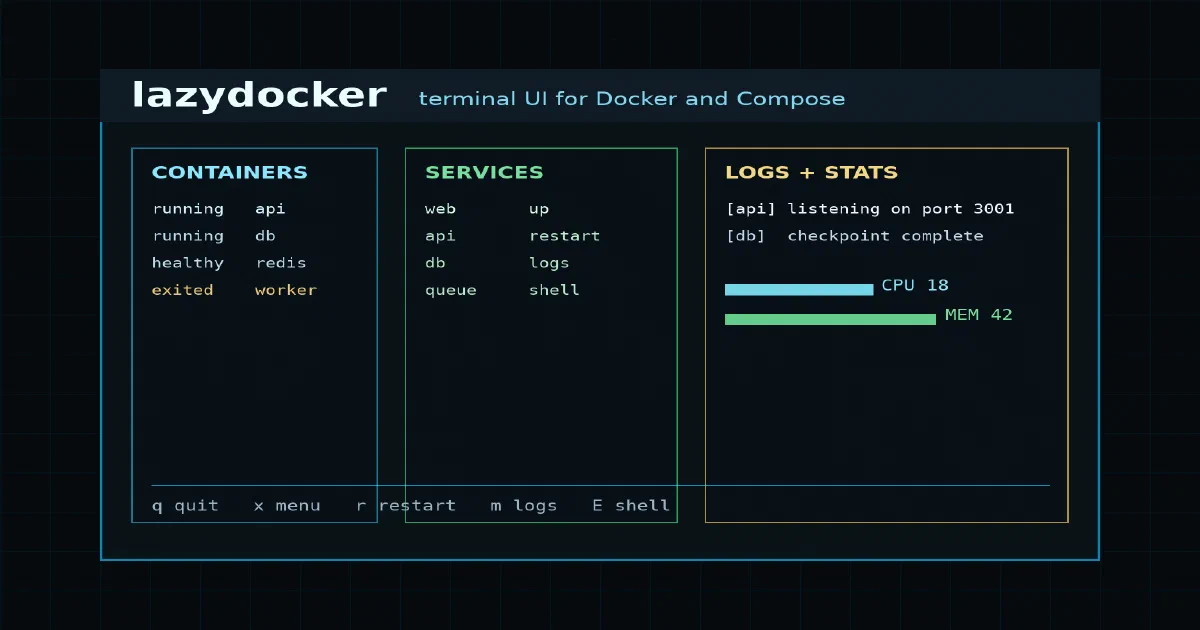

There is a specific kind of Docker fatigue that appears once you have more than a couple of containers.
docker ps in one terminal. Logs in another. docker compose restart somewhere else. A quick exec shell. A forgotten volume. A service that restarts too quickly for your log command to stay attached.
Lazydocker is built for that workflow. It is a terminal UI for Docker and Docker Compose, written in Go, that puts containers, services, logs, stats, images, volumes, networks, and common actions into one keyboard-driven screen.
It is not a server you deploy and visit in a browser. It is closer to a local operations console for people who already live in the terminal.
What is Lazydocker?
Lazydocker is a TUI, or terminal user interface, for Docker. You run lazydocker, it connects to your Docker daemon, and it gives you panels for the resources you usually manage with Docker CLI commands.
The core panels are:
- projects
- services
- containers
- images
- volumes
- networks
- menu/actions
From those panels you can inspect state, view logs, watch stats, start and stop things, restart services, rebuild Compose services, attach to containers, run custom commands, and prune resources.
That means lazydocker sits in a different category from browser dashboards like Portainer. Portainer is a web management layer. Lazydocker is a terminal-native control surface for the Docker daemon and Compose projects you already use.
Why It Is Useful
The best use case is local development and homelab operations.
When you are iterating on a Compose stack, the expensive part is not typing one command. It is keeping context:
- which service is running
- which container is unhealthy
- which port was published
- what the last logs said
- whether a restart worked
- whether a rebuild is needed
- which image or volume is old enough to prune
Lazydocker compresses that loop. The container list, service list, logs, stats, and actions stay in one terminal window.
It also supports mouse interaction, but the real value is keyboard flow. Common actions are keypresses rather than commands you retype from memory.
Source Layout
The repo is a Go project:
main.go
go.mod
go.sum
Dockerfile
docker-compose.yml
config/config.yml
docs/Config.md
pkg/
vendor/
The pkg/ directory is where the architecture becomes clear:
pkg/app/          application bootstrap
pkg/commands/     Docker, Compose, image, container, volume, network, OS command wrappers
pkg/config/       default and user configuration
pkg/gui/          terminal UI, panels, views, keybindings, layout
pkg/gui/panels/   generic list-panel primitives
pkg/gui/presentation/ display formatting for Docker resources
pkg/i18n/         translations
pkg/tasks/        background task handling
pkg/utils/        shared helpers
The project vendors its dependencies, which is why the tested build path can use:
go build -mod=vendor
How Lazydocker Works
The main.go entrypoint is small. It parses flags, handles --config and --version, loads app config, creates the app, and starts the UI.
The runtime path looks like this:
main.go
config.NewAppConfig(...)
app.NewApp(...)
commands.NewDockerCommand(...)
gui.NewGui(...)
gui.Run()
app.NewApp wires together the logger, translations, OS command helper, Docker command helper, GUI, and error channel.
The Docker layer then decides how to connect to Docker. It determines the Docker host, supports ssh:// Docker hosts through an SSH helper, creates a Docker SDK client with API version negotiation, and checks whether the current directory is a Docker Compose project.
That last point matters. Lazydocker can work in two modes:
- Compose-aware mode, where services and project context are available.
- Flat Docker mode, where it shows containers without a local Compose project.
Recent source also supports a -p / --project flag so you can specify a Compose project name.
SDK Calls and Command Templates
Lazydocker uses both the Docker SDK and shell commands.
For container-level actions, the code calls the Docker SDK directly:
ContainerStart
ContainerStop
ContainerPause
ContainerUnpause
ContainerRestart
ContainerRemove
ContainerInspect
ContainerTop
ContainerLogs
ContainersPrune
For Compose workflows, it uses configurable command templates. The default config includes templates like:
{{ .DockerCompose }} restart {{ .Service.Name }}
{{ .DockerCompose }} up -d {{ .Service.Name }}
{{ .DockerCompose }} logs --follow {{ .Service.Name }}
{{ .DockerCompose }} config --quiet
This is a pragmatic design. Docker Compose behavior changes across environments, and some users still need docker-compose while others use docker compose. Lazydocker defaults to docker compose, checks whether it is available, and can fall back.
The template system also makes custom commands possible. A config can expose commands against containers, services, images, volumes, networks, or projects while still using structured values such as the selected container ID or service name.
Configuration
You can print the default config with:
lazydocker --config
The documented config locations are:
macOS:   ~/Library/Application Support/jesseduffield/lazydocker/config.yml
Linux:   ~/.config/lazydocker/config.yml
Windows: C:\Users\<User>\AppData\Roaming\lazydocker\config.yml
Important config sections include:
guilogscommandTemplatescustomCommandsbulkCommandsoSstatsreplacements
From the local binary, the default config included:
gui.language: auto
gui.wrapMainPanel: true
gui.sidePanelWidth: 0.3333
gui.screenMode: normal
logs.since: 60m
commandTemplates.dockerCompose: docker compose
stats.maxDuration: 3m0s
That logs.since: 60m default is worth noticing. Lazydocker intentionally does not pull every historical log line by default, which is a reasonable performance guard for noisy containers.
Installing Lazydocker
The project documents multiple installation paths:
brew install jesseduffield/lazydocker/lazydocker
brew install lazydocker
go install github.com/jesseduffield/lazydocker@latest
It also documents Scoop, Chocolatey, asdf, Arch AUR, binary releases, and a Docker image path.
For a source build:
git clone https://github.com/jesseduffield/lazydocker
cd lazydocker
go install
For the Docker-packaged TUI, the important mount is the Docker socket:
docker run --rm -it \
  -v /var/run/docker.sock:/var/run/docker.sock \
  -v "$PWD/config":/.config/jesseduffield/lazydocker \
  lazyteam/lazydocker
That is convenient, but it is also powerful. A container with access to /var/run/docker.sock effectively has administrative access to the host Docker daemon. Treat it like an admin tool, not like a harmless dashboard.
Local Field Test
I tested lazydocker as a Go CLI/TUI project rather than starting another Docker stack.
Environment:
OS: Linux amd64
Go: go1.23.6
Docker Engine: 29.7.2
Docker API: 1.55
Docker Compose: v5.5.0
Commands:
git clone --depth 1 https://github.com/jesseduffield/lazydocker /tmp/foss-post-lazydocker/lazydocker
cd /tmp/foss-post-lazydocker/lazydocker
go build -mod=vendor -ldflags='-s -w -X main.version=foss-post -X main.commit=7e7aadc -X main.buildSource=local-analysis' -o /tmp/foss-post-lazydocker/lazydocker-bin .
go test -mod=vendor ./...
/tmp/foss-post-lazydocker/lazydocker-bin --version
/tmp/foss-post-lazydocker/lazydocker-bin --config
Results:
go build: success
binary: 12 MB Linux amd64 ELF
go test: success
--version: printed local build metadata
--config: printed default config
The unit test suite passed across the command, SSH, config, GUI, panel, and utility packages.
I did not use the interactive TUI to stop, restart, remove, prune, or attach to anything on this host, because there were already many unrelated containers running. That keeps the field test non-mutating.
Who Should Use It?
Lazydocker is a good fit if:
- you prefer terminal tools over browser dashboards
- you often inspect logs and stats while working on Compose stacks
- you restart, rebuild, and shell into containers frequently
- you want a faster local loop without memorizing every Docker command
It is less ideal if:
- you need multi-user web access
- you need role-based access control
- you need a remote management UI for non-technical operators
- you are uncomfortable giving a tool direct Docker daemon access
FAQ
Is Lazydocker a self-hosted web app?
No. Lazydocker is a terminal UI. You run it in a terminal on a machine that can access the Docker daemon.
Does it have a browser UI?
No. The UI is rendered in the terminal using a Go terminal UI library.
Can I run it in Docker?
Yes. The project provides a Dockerfile and Compose example, but the container needs access to /var/run/docker.sock to manage the host Docker daemon.
Is mounting the Docker socket safe?
It is powerful, not harmless. Anything with Docker socket access can usually control containers, images, volumes, networks, and potentially the host through privileged container operations. Use it only where you would trust an admin tool.
Does Lazydocker work without Docker Compose?
Yes. It can show Docker containers directly. Compose context unlocks service/project panels and Compose-specific actions.
What is the most useful config area?
commandTemplates and customCommands. They let you adapt lazydocker to your Compose command, project style, and repetitive workflows.
Conclusion
Lazydocker is a sharp tool for a common problem: Docker workflows spread across too many commands and terminals.
The source is direct and understandable. A Go entrypoint wires config, Docker access, and a gocui interface. Docker SDK calls handle resource operations. Compose actions stay configurable through templates. The UI panels keep logs, stats, services, containers, images, volumes, and networks close together.
For developers and homelab users, it is one of the more practical Docker terminal tools: small, fast to build, easy to install, and honest about its role as an admin surface over Docker.
Comments