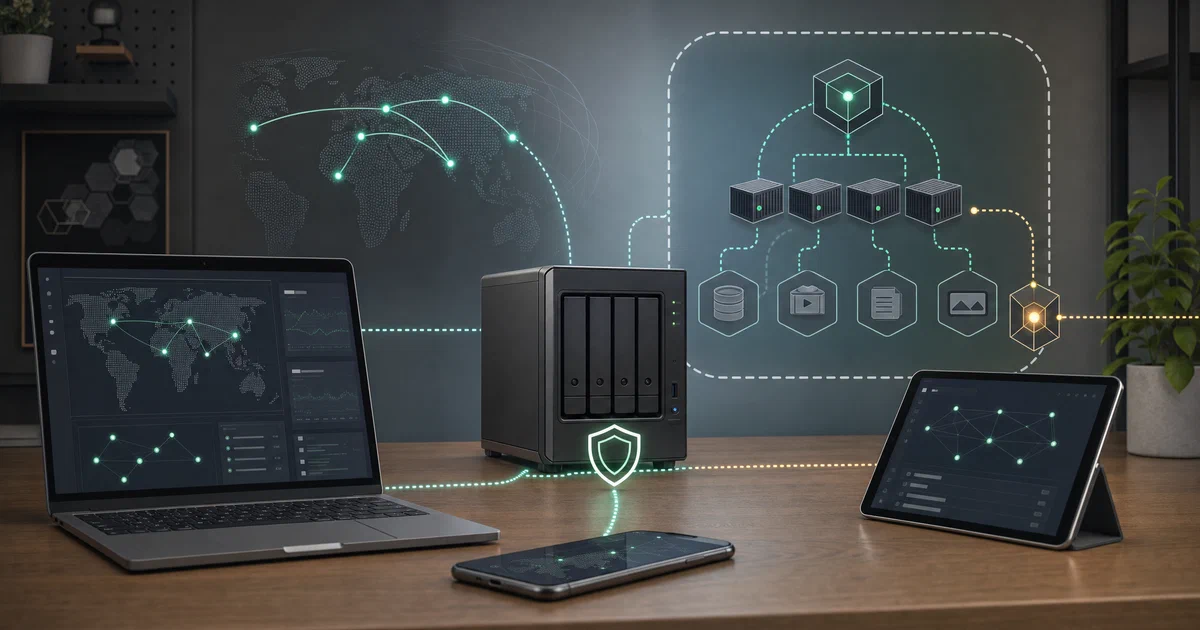

Warpgate is a self-hosted bastion host and transparent proxy for the services that usually sit behind a VPN or a jump box. It accepts connections for SSH, HTTPS, Kubernetes, MySQL, PostgreSQL, RDP, and VNC, then gives authenticated users only the targets they have been assigned.
That makes it interesting for a homelab with several administrative surfaces. Instead of publishing every dashboard or giving a contractor broad network access, you can put Warpgate in a management segment, create users or connect an OIDC provider, and expose selected services through a single controlled gateway.
What Is Warpgate?
Repository: https://github.com/warp-tech/warpgate
Checked commit: a2570d7 (2026-10-20)
Version tested: v0.30.0
License: Apache-2.0
Runtime: Rust single binary
Web UI: Svelte 5, TypeScript, Bootstrap
Database: SQLite through SeaORM and SQLx
Warpgate is more than a web reverse proxy. Native SSH and database clients can continue to work, while SSH, RDP, and VNC also have browser clients. The admin UI manages users, roles, targets, credentials, SSO, login protection, recordings, and audit history.
The project is deliberately transparent: Warpgate connects to the target itself and joins the client and target streams. The target does not need a Warpgate agent or a custom SSH wrapper.
Why Use It in a Homelab?
- expose one controlled management entry point instead of many public ports;
- assign a user to one server or database rather than to an entire subnet;
- use normal native clients while offering browser-based SSH, RDP, and VNC;
- add local accounts, TOTP, or OpenID Connect without building an identity layer yourself;
- issue temporary tickets for time-limited access;
- record and replay sessions for incident review and operational accountability;
- keep the database, configuration, certificates, SSH keys, and recordings in one backupable data volume.
Warpgate is not a replacement for a VPN in every situation. A VPN is usually the better tool when a trusted user needs broad access to many network services. Warpgate is stronger when access should be narrow, explicit, and auditable.
Self-Hosting with Docker
The reusable profile is in the public Home-Lab repository:
Home-Lab Warpgate Composeservices:
warpgate:
image: ${WARPGATE_IMAGE:-ghcr.io/warp-tech/warpgate@sha256:8d0899c48c7dae1833d0ff1af4f47417bd7324fa7dad15aa4a727cb83d598ec6}
container_name: homelab-warpgate
ports:
- "${WARPGATE_SSH_PORT:-3222}:2222"
- "${WARPGATE_HTTP_PORT:-3888}:8888"
- "${WARPGATE_KUBERNETES_PORT:-38443}:8443"
- "${WARPGATE_MYSQL_PORT:-36306}:33306"
- "${WARPGATE_POSTGRES_PORT:-35432}:55432"
- "${WARPGATE_RDP_PORT:-33389}:3389"
- "${WARPGATE_VNC_PORT:-35900}:5900"
volumes:
- warpgate_data:/data
stdin_open: true
tty: true
restart: unless-stopped
volumes:
warpgate_data:
name: homelab_warpgate_data
Start it:
cd /home/jalcocert/Desktop/Home-Lab/warpgate
cp .env.sample .env
docker compose pull
docker compose run --rm warpgate setup
docker compose up -d
The interactive setup asks whether sessions should be recorded and asks you to create the admin password. There is no universal default password. It then creates the initial configuration, SQLite database, certificate, CA material, and SSH keys in the named homelab_warpgate_data volume. The Home-Lab profile pins the verified image digest because the registry does not publish a v0.30.0 tag even though the binary reports that version.
The tested Home-Lab UI is:
https://192.168.1.2:3888
The generated certificate is self-signed, so a browser warning is expected for initial LAN testing. Use a trusted certificate or a correctly configured reverse proxy before public access.
The profile maps the protocol listeners as follows:
| Host port | Warpgate service |
|---|---|
| 3222 | SSH |
| 3888 | HTTPS admin and browser gateway |
| 38443 | Kubernetes |
| 36306 | MySQL |
| 35432 | PostgreSQL |
| 33389 | RDP |
| 35900 | VNC |
The generated setup enables SSH, Kubernetes, MySQL, and PostgreSQL. RDP and VNC are disabled until you enable them. Do not expose every mapped port to the internet just because it exists in Compose.
Field Note: The Container Works, with a Volume Detail
I tested the upstream image locally. The container started as Warpgate v0.30.0, but the first attempt using the upstream bind mount failed because /data was a root-owned host directory and the unprivileged container user could not write warpgate.yaml.
After correcting the data ownership with a temporary Docker helper, warpgate setup completed. It generated the SQLite state, certificates, and SSH keys. After restart, this request reached the UI:
curl -k -I https://127.0.0.1:8888/
The response was HTTP/1.1 401 Unauthorized, which is the expected unauthenticated response from a reachable protected listener. The Home-Lab profile uses a named Docker volume to avoid the bind-mount ownership trap and to keep the persistent state together.
Authentication, SSO and Permissions
Local users can be protected with passwords and TOTP. Warpgate also supports OpenID Connect, which lets an existing identity provider handle sign-in while Warpgate still controls which targets each user or role can reach.
Authentication and authorization are separate decisions. An OIDC user who can log in does not automatically receive access to every SSH host or database. Configure target assignments in the Warpgate admin UI and keep the admin account distinct from ordinary operators.
Login protection can block abusive IPs and lock users after repeated failures. This is useful for a bastion, but it does not replace firewall policy, TLS, monitoring, or a DMZ boundary.
Recordings and Backups
Session recordings can be viewed live and replayed later through the admin UI. This is valuable for audits and incident response, but recordings can contain passwords, tokens, private data, and database queries. Set retention deliberately and restrict access to the recording interface.
The persistent volume is more important than the SQLite file alone. Back up the configuration, certificate and key material, SSH keys, database, logs, and recordings together. A restore should be tested on an isolated host before an upgrade or migration.
Warpgate can use local recording storage or an S3-compatible backend. That opens options such as MinIO, RustFS, or another compatible object store, but it creates another credential and retention boundary. It is not required for the default single-container deployment.
Warpgate Compared with Other Access Tools
| Tool | Best at | Difference from Warpgate |
|---|---|---|
| SSH jump host | A controlled SSH hop | Warpgate adds per-target assignments, web access, SSO/2FA, database/RDP/VNC/Kubernetes proxying, and recording |
| Tailscale or a VPN | Broad private network connectivity | Warpgate can grant one service without granting subnet access |
| Cloudflare Access | Identity-aware edge access | Warpgate is self-hosted and handles native non-HTTP protocols directly |
| Teleport | Larger access platform and fleet workflows | Warpgate is a compact single-binary bastion with no mandatory agent or custom client |
| Pangolin | Self-hosted ingress and tunnels | Warpgate is focused on administrative access, assignments, and protocol-aware auditing |
FAQ
Is Warpgate a VPN?
What is the default admin username and password?
admin and asks you to choose the password. There is no universal default password. Do not publish the password or reuse the temporary password from a local trial.
Can I access the UI from my LAN?
https://192.168.1.2:3888. Expect a certificate warning until you configure a trusted certificate or reverse proxy. The endpoint requires authentication; an unauthenticated curl -k -I returned 401 Unauthorized in the local trial.
Does Warpgate need Postgres, Redis, or another database?
Which ports should I expose?
Can I use OpenID Connect instead of local accounts?
Does it provide browser-based SSH, RDP and VNC?
Are session recordings safe to enable?
Why did the first bind-mount trial fail?
warpgate user. A host directory created as root was not writable by that user, so setup could not create /data/warpgate.yaml. The Home-Lab Compose uses a named volume, which avoids this first-run ownership problem. If you choose a bind mount, initialize its ownership for the container UID before setup and protect the directory.
Is Warpgate a replacement for Cloudflare Access or Tailscale?
Conclusion
Warpgate is a serious access gateway for a homelab that has outgrown one-off port forwards. It gives you a browser UI, native clients, target-level authorization, SSO, TOTP, tickets, brute-force protection, and recording without requiring a separate database or agent on every target.
The trade-off is responsibility. Warpgate becomes a high-value management boundary, so its data volume, certificate material, tickets, recordings, protocol ports, and upgrade process deserve the same care as the systems it protects. Start on the LAN profile, configure one target, verify the audit path, then add public exposure only after TLS, firewall rules, identity, backups, and retention are deliberate.
Comments