
In the age of information overload, managing your attention is more critical than ever.
RSS (Really Simple Syndication) offers a way to curate the content you care about, and FreshRSS provides a powerful platform to do so privately and on your own terms.
This post will guide you through setting up FreshRSS with Docker.
Why Use RSS?
Attention is a precious resource. We’re constantly bombarded with information, and it’s easy to get lost in the noise.
RSS allows you to subscribe to the content you want, from the sources you trust, all in one place.
It puts you back in control.
What is FreshRSS?
FreshRSS is a free and open-source, self-hostable RSS and Atom feed aggregator.
It’s lightweight, easy to use, powerful, and highly customizable.
It empowers you to create your personalized news feed, free from algorithms and distractions.
- Official FreshRSS Website
- FreshRSS on GitHub
- License: AGPL 3.0 ❤️
Access your feeds on the go with the ReadDrops Android app.
Self-Hosting FreshRSS with Docker
Self-hosting gives you complete control over your data and ensures your privacy.
With Docker Containers, setting up FreshRSS is simple.
Prerequisites: Docker and Docker Compose
You can install Docker on any PC, Mac, Linux machine, or cloud server.
Here’s how to install Docker and Docker Compose on a Linux system (like Ubuntu/Debian):
sudo apt-get update && sudo apt-get upgrade -y  # Update system packages
curl -fsSL [https://get.docker.com](https://get.docker.com) -o get-docker.sh
sudo sh get-docker.sh
sudo usermod -aG docker $USER # Add your user to the docker group (for running docker commands without sudo)
newgrp docker # Apply the group changes (you may need to log out and back in)
sudo apt-get install docker-compose -y
Verify the installation:
docker --version
docker-compose --version
sudo systemctl status docker # Check Docker service status
Setting up FreshRSS with Docker Compose
Create a docker-compose.yml file (e.g., in ~/Docker/freshrss):
version: "2.1"
services:
  freshrss:
    image: lscr.io/linuxserver/freshrss:latest
    container_name: freshrss
    environment:
      - PUID=1000  # Find your UID: `id your_user_name`
      - PGID=1000  # Find your GID: `id your_user_name`
      - TZ=Europe/London  # Set your timezone
    volumes:
      - ~/Docker/freshrss/config:/config  # Persistent storage for configuration
    ports: # If you are not using a reverse proxy
      - 8200:80 # Maps container port 80 to host port 8200. Change it if you want
    # expose: # If you are using a reverse proxy
    #   - "80"
    restart: unless-stopped
#     networks:
#       - nginx_default # If you are using a reverse proxy, like Nginx Proxy Manager

# networks:
#   nginx_default:
#     external: true # If you have a reverse proxy network
- Run FreshRSS:
cd ~/Docker/freshrss  # Go to the directory with docker-compose.yml
docker-compose up -d
- Access FreshRSS: Open your web browser and go to
http://your_server_ip:8200(or the port you mapped).
If you are using a reverse proxy, like NGINX, you’ll access it through your domain.
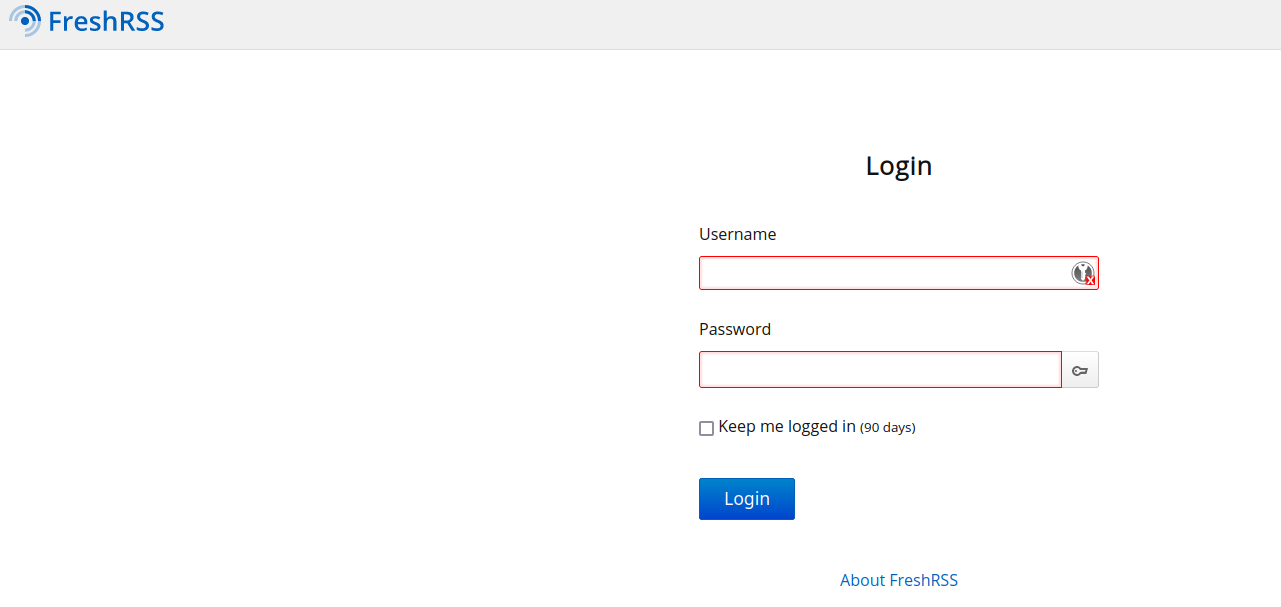
During the first use, you will register the admin user:
Using FreshRSS
Subscribing to YouTube Channels (and other content)
FreshRSS can subscribe to YouTube channels using RSS feeds!
Many services provide these feeds.
Search for “YouTube RSS feed generator” to find tools that can create these links for you.
How to set up Nginx Proxy Manager (recommended): See the guide on Setting up Nginx Proxy Manager with Docker.
This is highly recommended for secure access to your FreshRSS instance.
FAQ
How to Setup NGINX?
About RSS and Torrenting... 🐋👇
RSS is not for sharing files: RSS is a technology for syndicating information. It’s used to distribute summaries of content, not the content itself.
In the context of torrenting, the RSS feed only announces the availability of a torrent (and usually provides the .torrent file). It does not distribute the actual files being shared.
Torrenting is for file sharing: Torrenting is a peer-to-peer file-sharing protocol. It’s used to distribute files between users.
RSS feeds can be used to keep track of new releases of content that might be available via torrents. For example, if you follow a blog that announces new movie releases (which might later be available as torrents), you can subscribe to its RSS feed.
This allows you to stay informed about new content without having to constantly check the website
Other Youtube Front Ends
- NewPipe
- Youtube-DL
F/OSS Alternatives to FreshRSS
- RSS-Bridge
- RSSHub
- MiniFlux - https://github.com/miniflux/v2
- https://github.com/Athou/commafeed/
- https://github.com/thelounge/thelounge
Comments