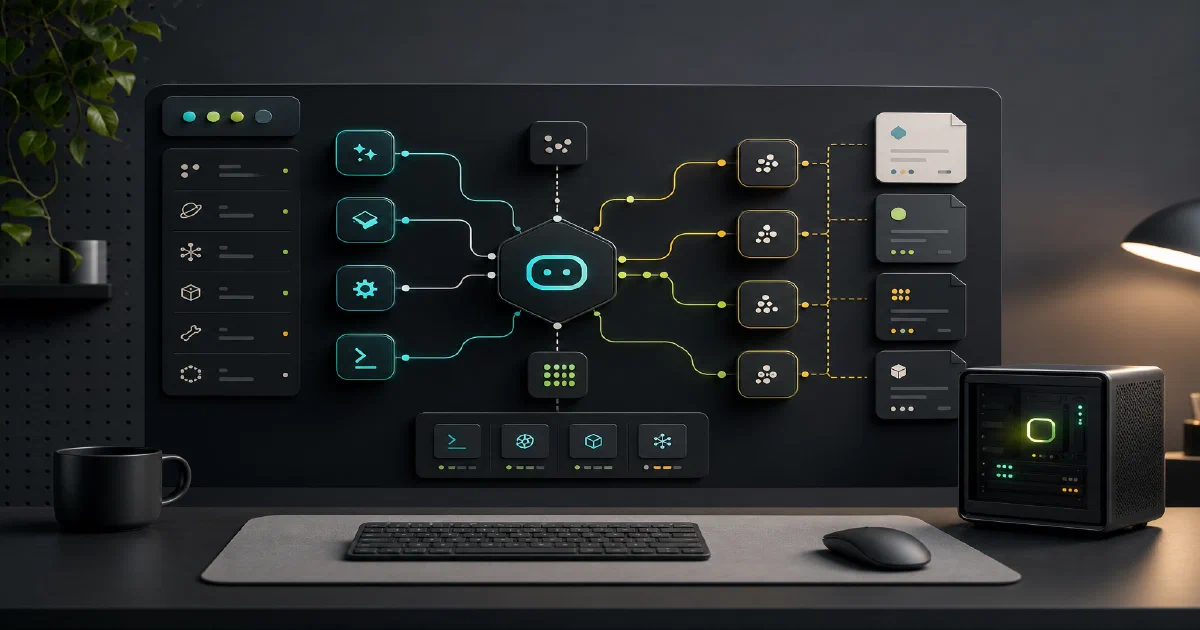

The “open-source Cursor alternative” framing is useful, but it undersells Pi a bit.
Pi is not only a terminal coding assistant. The repository is a monorepo for building agentic workflows: a CLI, an agent runtime, a unified LLM provider API, and a terminal UI library.
That makes it interesting if you want an agentic coding CLI today, but also if you are comparing reusable building blocks for your own AI developer tools.
Pi is an open-source agentic coding CLI and TypeScript toolkit for coding agents, model providers, terminal UIs, and extensible agent workflows.
Pi GitHub Source Code Pi Website Pi Documentation License: MIT ❤️
What is Pi?
Pi is a TypeScript monorepo under earendil-works/pi.
The public repository describes it as the home of the Pi agent harness project, including a self-extensible coding agent. The useful mental model is four packages:
| Package | What it does |
|---|---|
@earendil-works/pi-coding-agent |
The interactive pi coding-agent CLI |
@earendil-works/pi-agent-core |
Agent runtime with state management, tool execution, streaming events, and session logic |
@earendil-works/pi-ai |
Unified multi-provider LLM API |
@earendil-works/pi-tui |
Terminal UI library with differential rendering |
That split matters.
If you only want to use Pi, you install the CLI. If you want to build agent software, the lower-level packages are where the project gets more interesting.
Installing Pi
The documented global install path is:
npm install -g --ignore-scripts @earendil-works/pi-coding-agent
Then run Pi from the project you want it to work on:
cd /path/to/project
pi
The source checkout requires Node >=22.19.0. In my local test, Node v22.22.0 worked for the main packages.
One caveat: the Gondolin extension workspace emitted an engine warning because @earendil-works/[email protected] requires Node >=23.6.0. That did not block the core install/build/test path, but it is worth knowing if you specifically want the micro-VM isolation extension.
Provider Setup
Pi supports both subscription logins and API-key providers.
In interactive mode, start Pi and use:
/login
The docs list subscription login paths such as ChatGPT Plus/Pro through Codex, Claude Pro/Max, and GitHub Copilot.
For API-key usage, export the relevant environment variable before launching:
export OPENAI_API_KEY=sk-...
pi --provider openai --model gpt-4o-mini
The CLI help and provider docs also list many other provider variables, including:
ANTHROPIC_API_KEYGEMINI_API_KEYOPENROUTER_API_KEYCLOUDFLARE_API_KEYAI_GATEWAY_API_KEYAWS_PROFILEor AWS credentials for Bedrock
This is one of Pi’s main strengths: it is not designed around only one model vendor.
Trying Pi From Source
I tested the current source checkout locally:
git clone https://github.com/earendil-works/pi tmp/foss-post/pi
cd tmp/foss-post/pi
Observed source state:
| Item | Value |
|---|---|
| Commit | 89a92207 |
| Commit message | feat(coding-agent): add project trust gating |
| Latest tag observed | v0.78.1 |
| CLI package version | 0.78.1 |
| Node | v22.22.0 |
| npm | 10.9.4 |
| Docker | 29.5.3 |
| Free disk before trial | about 20GB |
| Available RAM before trial | about 2.1GB |
| Swap | 0B |
Install
I used the repository’s supply-chain-hardened install style:
/usr/bin/time -v npm ci --ignore-scripts
Result:
| Metric | Result |
|---|---|
| Exit status | 0 |
| Packages added | 363 |
| Wall time | 5.46s |
| Peak RSS | 310,060 KB |
Two practical notes:
- npm reported
2 critical severity vulnerabilities. - npm warned that the Gondolin extension requires Node
>=23.6.0, while this machine was on Nodev22.22.0.
I would not treat that audit line as a final security assessment, but I would check it before using Pi in a sensitive repository.
Build
Then I built the monorepo:
/usr/bin/time -v npm run build
Result:
| Metric | Result |
|---|---|
| Exit status | 0 |
| Wall time | 5.33s |
| Peak RSS | 756,052 KB |
One important detail: this build is not purely offline. During @earendil-works/pi-ai build, scripts fetched model metadata from external APIs and generated:
packages/ai/src/models.generated.ts
packages/ai/src/image-models.generated.ts
So if you are building in CI or in an isolated environment, check whether you want normal build behavior or an offline/pinned approach.
CLI Help
The source runner worked:
/usr/bin/time -v ./pi-test.sh --help
Result:
| Metric | Result |
|---|---|
| Exit status | 0 |
| Wall time | 1.94s |
| Peak RSS | 269,732 KB |
The help output confirms the main surfaces:
- interactive mode with
pi - one-shot print mode with
pi -p - JSON and RPC modes
- model/provider flags
- session resume/fork options
- extension, skill, prompt-template, and theme loading
- tool allowlists and denylists
- built-in tools such as
read,bash,edit,write,grep,find, andls
Running Without API Keys
I also tested the unauthenticated path:
/usr/bin/time -v timeout 25s ./pi-test.sh \
  --no-env \
  --offline \
  --no-session \
  -p "Say hello in one sentence"
Pi exited quickly with:
No API key found for the selected model.

Use /login to log into a provider via OAuth or API key.
That is a good failure mode. It does not silently hang or try to run a local model. It tells you to configure provider credentials.
I did not run an authenticated model session in this pass.
Test Suite
Finally, I ran the upstream test script:
/usr/bin/time -v timeout 180s ./test.sh
The script temporarily moved ~/.pi/agent/auth.json out of the way, unset provider API keys, set PI_NO_LOCAL_LLM=1, ran the workspace tests, and restored the auth file on exit.
Result:
| Metric | Result |
|---|---|
| Exit status | 0 |
| Wall time | 40.34s |
| Peak RSS | 374,484 KB |
Observed summaries:
| Package | Local result |
|---|---|
pi-agent-core |
163 passed |
pi-ai |
322 passed, 726 skipped |
pi-coding-agent |
1356 passed, 44 skipped |
pi-tui |
638 passed |
The coding-agent tests included package manager, session, tools, image processing, project trust, export, and TUI-related behavior. Some expected negative-path tests print npm 404 and missing GitHub repository messages; the final exit status was still clean.
Daily Usage Notes
The basics are straightforward:
pi
pi -p "Summarize this repository"
pi @README.md "Explain how this project is structured"
cat README.md | pi -p "Summarize this text"
Inside interactive mode, the docs highlight:
@to fuzzy-search and reference files!commandto run a shell command and send output to the model!!commandto run a shell command without adding output to model context/modelorCtrl+Lto switch modelShift+Tabto cycle thinking level/resume,/new,/tree,/fork, and/clonefor sessions/compactfor context compaction/exportto HTML
Pi stores sessions under:
~/.pi/agent/sessions/
The session model is tree-shaped, which means you can branch from earlier messages instead of only appending linearly forever.
Extensions and Skills
Pi has a serious extension story.
Extensions are TypeScript modules that can:
- register custom tools
- register slash commands
- intercept or block tool calls
- inject context
- add custom TUI components
- persist state across sessions
The docs explicitly warn that extensions run with full system permissions, so this is powerful but not something to install blindly.
Pi also supports agent skills. It can load skills from:
~/.pi/agent/skills/~/.agents/skills/- project
.pi/skills/ - project
.agents/skills/ - packages
- explicit
--skill <path>flags
That matters if you already use skill-style workflows with Codex or Claude Code. Pi can participate in that same pattern rather than forcing every instruction into one giant prompt.
Security and Sandboxing
Pi does not pretend to be sandboxed by default.
The README is direct: Pi runs with the permissions of the user and process that launched it. If the agent has bash, write, and edit, then you should treat it like a powerful local automation tool.
The documented isolation patterns are:
| Pattern | Use Case |
|---|---|
| OpenShell | Run the whole Pi process inside a policy-controlled sandbox |
| Gondolin extension | Keep Pi/auth on the host, route built-in tools into a local Linux micro-VM |
| Plain Docker | Run the whole Pi process inside a local container |
The plain Docker docs are a Dockerfile pattern, not a ready-made Docker Compose app. I did not create a Home-Lab compose entry for Pi because I did not validate a compose deployment, and Pi is mainly a local CLI/toolkit rather than a long-running web service.
Pi vs Herdr vs NanoClaw
These tools are adjacent, but they solve different problems:
| Tool | Best Fit |
|---|---|
| Pi | Run or build an agentic coding CLI with multi-provider model support |
| Herdr | Manage persistent terminal panes for multiple coding-agent sessions |
| NanoClaw | Run a container-isolated personal assistant runtime with admin and agent CLI surfaces |
So Pi can be the coding agent you run. Herdr can be the terminal control plane around several agents. NanoClaw is more like a personal assistant runtime with containerized sessions.
The best reading order is: Codex CLI for the OpenAI-native baseline, OpenCode for the provider-flexible CLI, then Pi for the toolkit view. After that, T3 Code and Herdr make more sense because they sit around the agents rather than replacing them.
Conclusion
Pi is worth watching because it is not just a CLI wrapper around one model.
The source tree shows a broader toolkit: model provider abstraction, agent runtime, terminal UI, sessions, skills, extensions, and sandboxing guidance. Locally, the current checkout installed, built, printed CLI help, failed cleanly without credentials, and passed the upstream no-key test script.
The main caveats are also clear: you need to configure providers before useful agent runs, Pi is not sandboxed by default, some isolation paths have stricter Node/runtime requirements, and the build can fetch live model metadata.
For a developer already living in terminal-based agent workflows, Pi fits naturally into the same category as Codex, Claude Code, OpenCode, Aider, and other agentic CLIs, with the extra benefit that its toolkit pieces are reusable.
FAQ
Is Pi a self-hosted web app?
Does Pi support OpenAI?
OPENAI_API_KEY, OpenAI provider usage, and ChatGPT Plus/Pro Codex login support. I validated the CLI/help and unauthenticated behavior locally, but I did not run a live OpenAI agent session in this pass.
Can Pi run without API keys?
No API key found for the selected model.
Is Pi sandboxed by default?
Does Pi replace Herdr?
Does Pi replace NanoClaw?
What command did you use for local source testing?
From the cloned repository:
npm ci --ignore-scripts
npm run build
./pi-test.sh --help
./pi-test.sh --no-env --offline --no-session -p "Say hello in one sentence"
./test.sh
Comments