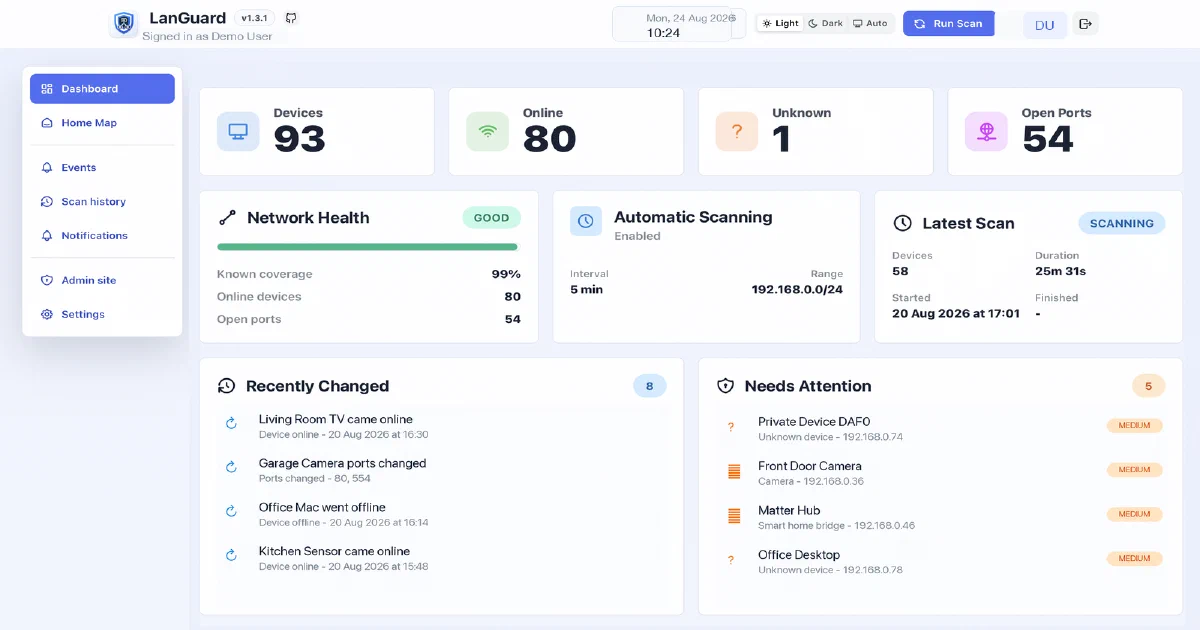

Most home labs grow quietly.
One day there is a router, a laptop, and maybe a NAS. A few months later there are smart plugs, cameras, ESPHome nodes, phones with private MAC addresses, media boxes, printers, guest devices, and test machines that only appear when a project is half-finished.
LanGuard is a self-hosted dashboard for making that local network visible again.
It discovers devices on your LAN, keeps an inventory, tracks online and offline state, records port changes, organizes devices by room and role, and can send notifications when something important changes.
I inspected the v1.12.0 release from 2026-09-04. I did not start its Docker Compose stack or run active LAN scans while preparing this post, because this write-up was created under a “do not affect running containers” constraint.
What is LanGuard?
LanGuard sits between a lightweight network scanner and a home-lab inventory tool.
It is not a packet sniffer, SIEM, or vulnerability scanner.
It does not capture application traffic or inspect packet payloads.
Instead, it uses LAN discovery methods to answer practical questions:
- What devices are currently visible on my network?
- Which devices are new, known, online, sleeping, or offline?
- Which common TCP ports are open?
- Which device appears to be the gateway?
- Which devices have a useful local web interface?
- What changed since the previous scan?
- Should I get a Discord, Telegram, or automation webhook alert?
That makes it useful for self-hosters who want more context than a router’s DHCP table, without deploying a full observability stack just to watch a home network.
Why Self-Host It?
The interesting part of LanGuard is that it is local-first by design.
The Docker version stores its data in SQLite.
The web dashboard runs on your host, the scheduler scans your LAN from that host, and the optional integrations are configured by you. For a network inventory app, that matters.
IP addresses, MAC addresses, hostnames, device names, rooms, and DNS activity can reveal a lot about how a home or small office is set up.
LanGuard also fits a real home-lab workflow. You can rename devices, assign icons, group them by room, mark devices as known, add comments, acknowledge expected risks, import from WatchYourLAN, and export inventory between installations.
It feels closer to “living network notebook” than “security appliance”.
Tech Overview
The repository has three main application surfaces:
- A Django backend with Django REST Framework, token authentication, drf-spectacular OpenAPI docs, Whitenoise static serving, SQLite storage, and Granian as the container server.
- A Next.js frontend using React, Mantine UI, and Tabler icons.
- A native macOS app written in Swift for users who prefer a desktop network scanner.
The Docker deployment separates the web stack into three services:
backendserves the API, auth, static files, health endpoint, and database-backed application state.scannerrunsmanage.py run_scheduler --run-nowfor recurring scans, notification retries, activity cleanup, and AdGuard Home sync.frontendserves the Next.js UI through Caddy and proxies API requests to the backend.
The backend models show the scope of the app clearly: devices, device ports, scan runs, network events, notification deliveries, DNS activity aggregates, unmatched AdGuard clients, app settings, home-map layout, and user access.
For discovery, LanGuard combines ARP, reverse DNS, mDNS, LLMNR, SSDP/UPnP, NetBIOS-style metadata, MAC vendor lookup through Wireshark manuf data, TCP port checks, ICMP or known-port status confirmation, and HTTP/HTTPS probing for device-management interfaces.
That combination is pragmatic.
ARP is good for seeing active devices on a local segment, but it is not enough for names, sleeping devices, web interfaces, or stable identity.
LanGuard layers several weak signals together and records where hostname and vendor evidence came from.
Current Release Notes
The latest tag I found while inspecting the repository was v1.12.0, dated 2026-09-04.
That release adds more reliable discovery of the Docker scanner host itself, local-interface status reporting, duplicate-safe updates of imported devices, per-device online/offline notification overrides, and a direct link from the DNS Activity page to the configured AdGuard Home interface.
The recent v1.11.0 release is also worth noting because it added the automation webhook channel with optional HMAC-SHA256 signing, per-user permissions, and the Speedtest Tracker dashboard integration.
Self-Hosting with Docker
LanGuard’s official Compose file uses host networking and privileged containers for the backend and scheduler.
That is intentional: the scanner needs enough access to observe devices on the LAN. If you isolate it behind a normal Docker bridge, you may only see the Docker host or gateway instead of the real network.
Here is a local snippet based on the upstream Compose file, with secret-like values moved to required environment variables:
Create a .env file next to the Compose file:
SECRET_KEY=replace-with-a-long-random-secret
ALLOWED_HOSTS=192.168.1.10,languard.local,127.0.0.1
BACKEND_LISTEN_PORT=8000
Generate a Django secret with:
openssl rand -base64 48
Then deploy it from your Compose or Portainer workflow and open:
http://<docker-host-ip>:8080
The first created user becomes the administrator. After login, open Settings and review the scan range, scan interval, timezone, notification channels, and optional add-ons.
Deployment Notes
There are a few details worth checking before deploying LanGuard on a busy home-lab host.
First, host networking means port conflicts matter. The backend listens on 8000 by default and the frontend listens on 8080 by default. If 8000 is already used, set BACKEND_LISTEN_PORT and keep the frontend upstream aligned with it.
Second, LanGuard’s current Compose uses fixed container names: languard-backend, languard-scanner, and languard-frontend. That is convenient for Portainer users, but you should avoid deploying a second stack with the same names.
Third, because scanning is active network behavior, set a sensible scan range. A normal home subnet like 192.168.1.0/24 is very different from accidentally pointing a tool at a broad private range.
Fourth, the scanner loads the scan range and interval when the scheduler starts. If you change either setting, restart the scheduler container so the recurring loop picks it up.
Integrations
LanGuard can connect to a few services that self-hosters are likely to already run.
The AdGuard Home integration imports query-log activity into LanGuard as aggregates. That is the correct privacy shape for this kind of feature: the app stores per-device domain counters and blocked-query totals, not a raw forever-copy of every DNS response.
There is one important caveat. Per-device attribution depends on AdGuard Home seeing the real client IP.
If every DNS request reaches AdGuard through your router, LanGuard can only associate the activity with the router.
For per-device DNS activity, clients or DHCP should point directly at AdGuard Home.
The Speedtest Tracker integration is intentionally lighter. LanGuard can show the latest download, upload, ping, packet loss, health, and test time on the dashboard, but it does not import the whole Speedtest Tracker history into its own database.
For automation, LanGuard can send structured network-event webhooks to tools like n8n or Home Assistant. Signed webhooks include delivery, event, timestamp, and HMAC signature headers, which is the right baseline if you expose an automation endpoint beyond a trusted local network.
API and Operations
The backend exposes Swagger, ReDoc, and OpenAPI schema endpoints under:
/api/schema/swagger/
/api/schema/redoc/
/api/schema/
That is useful if you want to build automations around the device inventory, scan history, events, or notification workflows.
For support, LanGuard includes a diagnostics export from Settings. The README says this report intentionally omits credentials, service URLs, usernames, device names, IP addresses, MAC addresses, network ranges, and raw exception text. That is a good operational detail for a tool that handles private network metadata.
Development is conventional for the chosen stack:
python3.14 -m venv .venv
source .venv/bin/activate
pip install -r requirements.txt
python backend/manage.py migrate
python backend/manage.py runserver 127.0.0.1:8000
Then the frontend runs separately:
cd frontend
npm ci
npm run dev
The project also has tests for the Django app, changelog tooling, frontend lint/build, and Swift tests for the macOS app.
When I Would Use LanGuard
LanGuard makes sense when you want a friendly network inventory for a home lab, family network, or small office LAN.
It is especially compelling if you already run AdGuard Home, Speedtest Tracker, Home Assistant, n8n, Telegram alerts, or Discord alerts and want network events to join that automation layer.
I would not treat it as a replacement for firewall logs, endpoint security, or vulnerability scanning. Its value is visibility: “what is here, what changed, and should I look at this device?”
For that job, the design is nicely scoped.
Alternatives
If you only want a classic LAN discovery table, WatchYourLAN is the obvious comparison.
If you want traffic inspection, you are in a different category: Wireshark, Zeek, Suricata, or router/firewall telemetry.
If you want infrastructure monitoring, look at Netdata, Prometheus, Uptime Kuma, or your router’s own metrics.
LanGuard sits in the middle: more organized than a scan result, less heavy than a security monitoring platform.
FAQ
Does LanGuard need host networking?
Does LanGuard inspect my traffic?
Why do phones appear as new devices?
Can I migrate from WatchYourLAN?
/api/all endpoint, then preserve or update matching devices by MAC address.
Did you test the Docker deployment?
v1.12.0 repository source, README, Compose file, backend code, frontend dependencies, changelog, and license, but I did not run Docker or execute LAN scans because the task required not affecting currently running containers.
Conclusion
LanGuard is a practical self-hosted option for people who want their LAN to feel less opaque.
The project combines the right pieces: host-level discovery, a readable dashboard, device organization, scan history, notifications, OpenAPI docs, AdGuard Home DNS context, Speedtest Tracker status, and a Docker deployment that matches how LAN scanning actually works.
The main thing to respect is the deployment model. Host networking and privileged scanning are powerful, so review the Compose file, bind it to the right host, choose the scan range carefully, and treat the database as private network inventory.
For a home lab where devices come and go constantly, LanGuard is the kind of small operational tool that can prevent a lot of “what is this IP again?” moments.
Comments