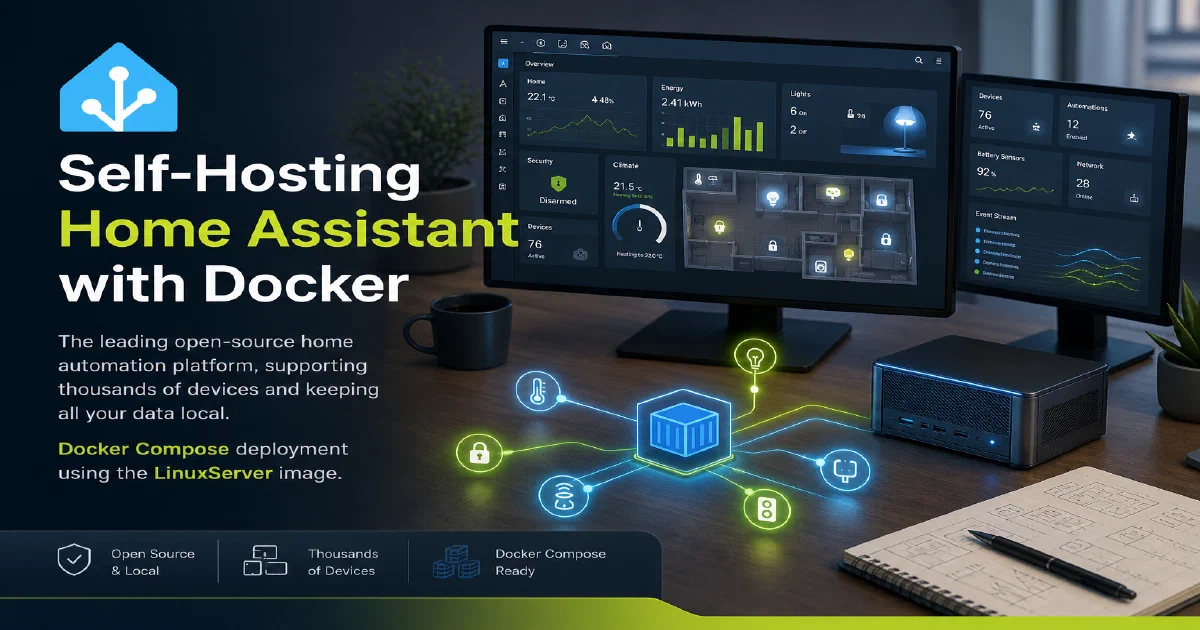

Home Assistant is the definitive self-hosted smart home platform.
It integrates with over 3,000 devices and services — from Zigbee sensors and Z-Wave locks to Philips Hue, Sonos, and practically every cloud-based smart home product — while keeping all your automation logic and device state on your own hardware.
No subscriptions, no cloud dependency, no data harvesting.
Why Home Assistant?
- Local-first architecture: Automations run on your server, not in someone else’s cloud. Even if your internet goes down, your lights still turn on at sunset.
- Unmatched integrations: The integration library is enormous and community-maintained. If a device exists, there is probably already a Home Assistant integration for it.
- Powerful automations: The automation engine goes far beyond simple if-this-then-that logic. Conditions, triggers, scripts, and template rendering give you fine-grained control over every aspect of your home.
Home Assistant with Docker
The LinuxServer.io image is a popular choice for Docker deployments because it handles UID/GID mapping cleanly and gets timely updates. Note that network_mode: host is important — Home Assistant uses mDNS and other local network discovery protocols that do not work well through Docker’s default bridge networking.
docker --version
Docker Compose
#---
#version: "2.1"
services:
  homeassistant:
    image: lscr.io/linuxserver/homeassistant:latest
    container_name: homeassistant
    network_mode: host
    environment:
      - PUID=1000
      - PGID=1000
      - TZ=Europe/London
    volumes:
      - /home/Docker/HomeAssistant:/config
    ports:
      - 8123:8123 #optional
    #devices:
    #  - /path/to/device:/path/to/device #optional
    restart: unless-stopped
Update TZ to your timezone and adjust the volume path to wherever you want Home Assistant to store its configuration. If you are integrating USB-based devices such as a Zigbee stick or a Z-Wave dongle, uncomment the devices section and pass the correct device path.
Start the stack:
docker compose up -d
Accessing Home Assistant
Home Assistant listens on port 8123. Open:
http://localhost:8123
The onboarding wizard will guide you through creating your first user account, setting your location, and discovering devices already on your network.
Conclusion
Home Assistant is the gold standard for local smart home control, and Docker makes it easy to run it on any Linux machine. Once you have it running, the real fun begins — building automations that actually make your home smarter. Pair it with ESPHome for cheap DIY sensors, EMQX as your MQTT broker, and n8n when you need to bridge automations into APIs Home Assistant doesn’t cover natively. Brand new to Docker? Start with the containers primer.
The Home Assistant project
FAQ
Home Assistant Container vs Home Assistant OS — which should I run?
The Docker (Container) install is what this post covers — full control, runs alongside other services, no add-on store. Home Assistant OS is the all-in-one image you flash to a Pi or run as a VM; it adds the supervisor, the add-on store, and snapshot backups, but it owns the whole machine. Pick OS if Home Assistant is the only thing on the box; pick Container if you already run a Docker host.
Do I really need network_mode: host?
For local discovery (Zeroconf/mDNS, SSDP, Wi-Fi printers, smart TVs) — yes. Bridge networking blocks broadcast/multicast traffic, which silently breaks half the integrations. The trade-off is that Home Assistant grabs port 8123 on the host directly. Move other services off that port and host networking is the cleanest setup.
How do I pass through a Zigbee or Z-Wave USB stick?
Identify the device with ls -la /dev/serial/by-id/ on the host. Use the by-id path (not /dev/ttyUSB0 — that name can change between reboots) in the compose file:
devices:
  - /dev/serial/by-id/usb-Silicon_Labs_Sonoff_Zigbee_3.0_USB_Dongle_Plus_xxxxx:/dev/ttyUSB0
Then point Zigbee2MQTT or ZHA at /dev/ttyUSB0 inside the container.
Why use MQTT and a separate broker like EMQX?
For ESPHome on the native API, you don’t need MQTT. But once you bring in Tasmota devices, Zigbee2MQTT, or third-party sensors, MQTT becomes the lingua franca. A dedicated broker like EMQX gives you better observability and won’t be tied to Home Assistant’s lifecycle.
How do I back up my configuration?
Back up the volume mounted at /config. That directory contains everything — configuration.yaml, automations, secrets, and the database. The Container install does not include the supervisor’s snapshot feature, so a simple tar of the config directory plus a database dump is the standard approach.
Can I run this on a Raspberry Pi?
Yes — a Pi 4 with 4 GB RAM is the sweet spot. A Pi 5 is overkill for most homes; a Pi 3B+ works but feels slow once you add Frigate or AppDaemon.
Comments